Salla → Google Sheets
Salla orders in Google Sheets
Every new order becomes a row in your Google Sheet: time, order number, status, total, customer and email.
Start free trial7-day free trial · no credit card
What you get · Sample data
| Received at (UTC) | Event | RawNak ID | ID | Status | Total | Customer | |
|---|---|---|---|---|---|---|---|
| 2026-10-20 18:40 | order.created | 8492 | 8492 | بإنتظار المراجعة | 349 SAR | سارة العتيبي | [email protected] |
| 2026-10-20 18:52 | order.created | 8493 | 8493 | بإنتظار المراجعة | 120 SAR | نورة القحطاني | [email protected] |
Sheet: RawNak
Set it up in three parts
- 1
Create your RawNak workspace
- Sign up, then copy your endpoint URL and signing secret from the dashboard.
- 2
Connect Salla
- In your Salla partner app settings, set the notification URL to your RawNak endpoint.
- Choose the Signature security strategy and the events you need, such as order.created and order.updated.
- Copy Salla's notification secret into Security → Extra signing secrets in RawNak.
- 3
Add Google Sheets as a destination
- In RawNak, open Destinations → Add destination → Google Sheets and copy the ready-made script.
- In your sheet, open Extensions → Apps Script, paste the script and deploy it as a Web app (Execute as: Me, Who has access: Anyone).
- Paste the Web app URL back in RawNak, save and press “Test connection”.
Salla retries a failed notification only about three times. RawNak stores every order the moment it arrives and keeps retrying the delivery for up to 24 hours.
Full step-by-step guide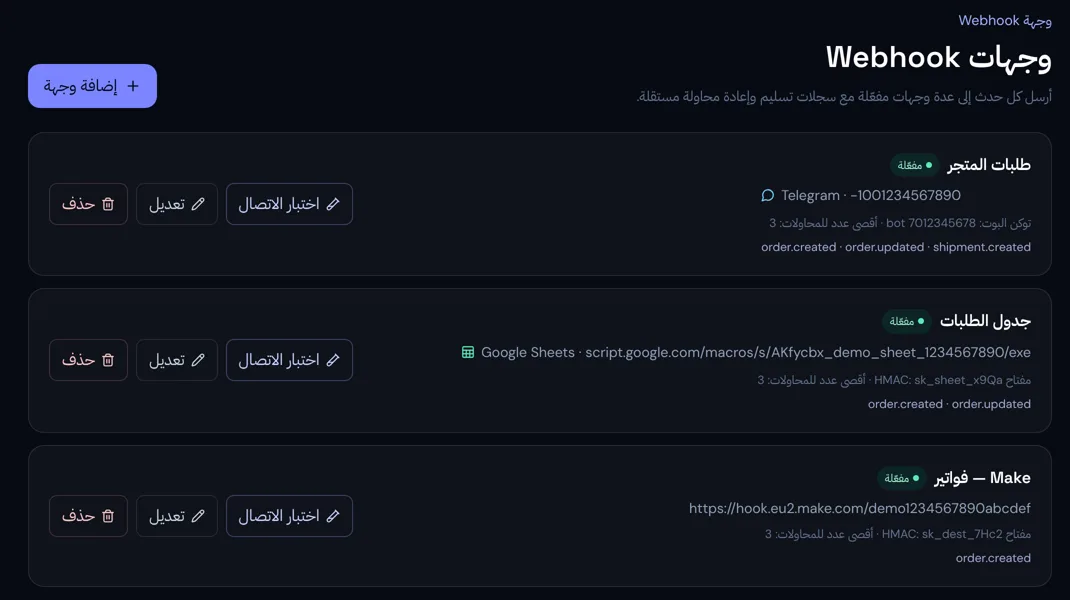
Why route it through RawNak
A live order log you can filter, share with your accountant or chart, with no Google password stored on our side.
- Every order is stored the moment it arrives, even if the destination is down.
- Failed deliveries are retried automatically, and any order can be resent from the delivery log.
- Choose which events go to each destination, so you only see what matters.